Text Expander for Chromebook: Quick Snippets in Chrome Apps
A Chromebook text expander should fit where you actually type: inside Chrome, or across devices and teams. Typerelay suits mixed workflows with shared snippets, web sync, and support for macOS, Windows, and Linux.
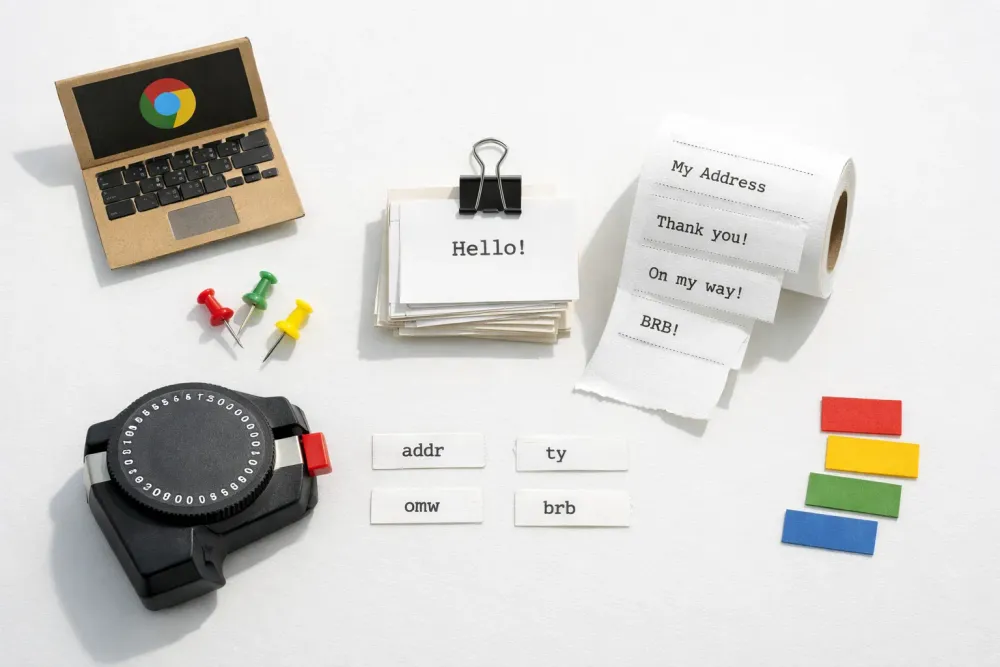
If you are looking for a text expander for Chromebook, the first question is not "which brand is best?" It is "where do you actually need shortcuts to work?"
ChromeOS pushes a lot of work into the browser, but many people still type in web apps, desktop-like web apps, and mixed environments with other operating systems. That means a Chromebook-friendly text expander has to be judged by fit, not by label alone. For some users, a browser-only shortcut tool is enough. For others, the real need is a cross-platform snippet library that also covers Windows, macOS, or Linux.
Typerelay is built for that second group. It is a text expander for reusable replies, signatures, and snippets, with desktop clients for macOS, Windows, and Linux, plus web sync and shared snippets for teams. If your Chromebook is part of a mixed-device workflow, that matters.
What "text expander Chromebook" usually means
People searching this phrase are usually trying to solve one of three problems:
- They want faster typing inside Chrome or Chrome-based web apps.
- They use a Chromebook alongside other computers and want the same shortcuts everywhere.
- They need a text expansion setup that a team can maintain without copying the same wording into separate apps.
Those are different needs. A browser extension can help with the first one. A desktop text expander is more useful for the second and third, especially if your workflow is not limited to one browser tab.
If your only typing happens inside Chrome, a browser-specific tool may be enough. Typerelay's Google Chrome fit check looks at that narrower case. But if you care about one snippet library across devices and a cleaner workflow for shared text, the bigger question is whether your shortcut system should live outside the browser.
When a Chromebook-only setup is enough
A Chromebook-only setup can be fine when all of these are true:
- you only need a handful of shortcuts
- you only type in browser tabs
- you do not need shared team snippets
- you do not care about syncing the same library to other desktops
In that case, the main requirement is convenience. You want fast insertion, low setup effort, and no extra maintenance. A browser-native expander can be a good fit if it keeps you moving without adding another app to manage.
The limit shows up when your work spreads beyond the browser. If you also answer support tickets, send sales replies, write internal notes, or reuse signatures on other desktops, a browser-only workflow starts to feel narrow. You end up recreating the same text in more than one place.
When a cross-platform text expander is the better fit
A cross-platform text expander makes more sense when your shortcuts are part of your actual work, not just a browser convenience.
That usually means you need:
- reusable replies or signatures
- longer snippets with line breaks
- a way to keep approved text in one place
- the same snippet library across macOS, Windows, and Linux
- a workflow that can support more than one person
Typerelay is designed around that kind of use case. It supports private and shared snippets, web sync, and desktop clients for macOS, Windows, and Linux. So if the Chromebook is only one part of your setup, you do not have to treat it as a separate snippet island.
For readers comparing platforms, the broader cross-platform text expander guide is the closest match to this use case.
How Typerelay fits a Chromebook-centered workflow
Typerelay is not a Chromebook-only app. That is the point. It is useful when a Chromebook sits inside a larger workflow and you want the same text habits across devices.
Here is the practical fit:
- If you use a Chromebook and a Windows or Mac laptop: keep one snippet library instead of managing separate shortcuts.
- If your team shares standard replies: store the approved wording once and reuse it across people.
- If you write the same signatures or support text repeatedly: save them as snippets instead of rebuilding them in each app.
- If your work shifts between browser and desktop tools: use one system that follows your text, not your app.
Typerelay also supports web sync, which helps when you want the same library available without manually copying content around. That is especially useful for teams that need one source of truth for recurring wording.
What to look for before you choose a Chromebook text expander
A good Chromebook text expander should be judged on the work it removes, not the marketing around it. Ask these questions:
Does it work where you actually type?
If your daily work stays in Chrome, browser coverage matters most. If you also switch between desktop apps or other operating systems, browser-only coverage becomes a limitation.
Can you manage long and short snippets easily?
A good tool should handle both quick phrases and longer blocks of text. That includes signatures, support replies, and internal notes.
Can you keep shared text in one place?
If more than one person uses the same wording, shared snippets are essential. Otherwise, edits get copied and pasted everywhere, and mistakes creep in.
Does it support multiple desktops?
If your Chromebook is part of a multi-device workflow, cross-platform support matters more than Chromebook compatibility alone.
Can you update wording without friction?
The real benefit of text expansion shows up when content changes. If every update is painful, people stop maintaining the library.
Typerelay covers those basics with shared snippets, web sync, and desktop clients across macOS, Windows, and Linux. That makes it a stronger fit for mixed-device teams than a one-browser-only approach.
A simple decision rule
Use this rule of thumb:
- Choose a browser-only solution if your shortcuts live entirely inside Chrome and you only need a few of them.
- Choose a cross-platform text expander if you want the same snippets across devices, apps, or teammates.
That is the cleanest way to think about "text expander Chromebook" searches. The goal is not to find a tool with Chromebook in the description. The goal is to find a workflow that stays useful when your typing needs change.
Typerelay makes the most sense when your Chromebook is part of a broader desktop setup, or when a team needs the same text available to multiple people. If that sounds like your situation, it is worth looking past browser-only options.

A practical Chromebook use case
Say you use a Chromebook for browser-based work, but your team also answers messages from Windows and Mac machines. You need:
- a standard greeting
- a support closing
- a short escalation note
- a signature block
- a couple of internal comments
A browser extension might cover the Chromebook side, but it will not help much when someone on another desktop needs the same wording. With Typerelay, you can keep those snippets in one library and make them available across supported desktops with web sync and shared snippets.
That is the real advantage. You are not just typing faster on one device. You are reducing repeated writing across the whole team.
If you only want faster typing in Chrome
If your search is really about Chrome rather than Chromebook, narrow the decision.
You probably want a browser-focused tool if:
- you spend almost all day in Chrome
- you only need a few text shortcuts
- you do not care about desktop apps
- you do not need team-managed snippets
That can be a perfectly reasonable setup. It is just a different problem from cross-platform text expansion. For more on that distinction, see Auto Text Expander for Google Chrome: A Practical Fit Check.
If you want one snippet library everywhere
If the real pain is repetition across devices, a desktop text expander is the better fit.
Typerelay is useful here because it is designed for:
- reusable replies and signatures
- private and shared snippets
- macOS, Windows, and Linux support
- web sync for keeping libraries aligned
- team workflows where approved wording matters
That makes it a practical choice for people who use a Chromebook sometimes, but not exclusively. It also helps when your organization does not want different systems for every laptop or browser.
For a broader feature checklist, Choosing a Text Expander App: Seven Features That Matter covers the decision process from a more general angle.
Bottom line
A "text expander Chromebook" search usually means one of two things: a browser-only shortcut tool, or a cross-platform text expansion system that happens to include Chromebook use in a larger workflow.
If you only need simple expansion inside Chrome, a browser-specific option may be enough. If you want reusable text across devices, teams, and operating systems, Typerelay is the stronger fit. It gives you snippets, shared libraries, web sync, and support for macOS, Windows, and Linux, which matters more than Chromebook compatibility alone.
If that is the problem you are trying to solve, do not stop at browser shortcuts. Look for the text workflow that will still make sense when your setup grows.