Typing Shortcuts That Travel Across Your Desktop Workflow
Build a small library of memorable, collision-resistant shortcuts for text you regularly reuse, then test them in the apps where you write. Keep snippets current and personalized, and use synced shared libraries to make approved wording available across operating systems and teams.
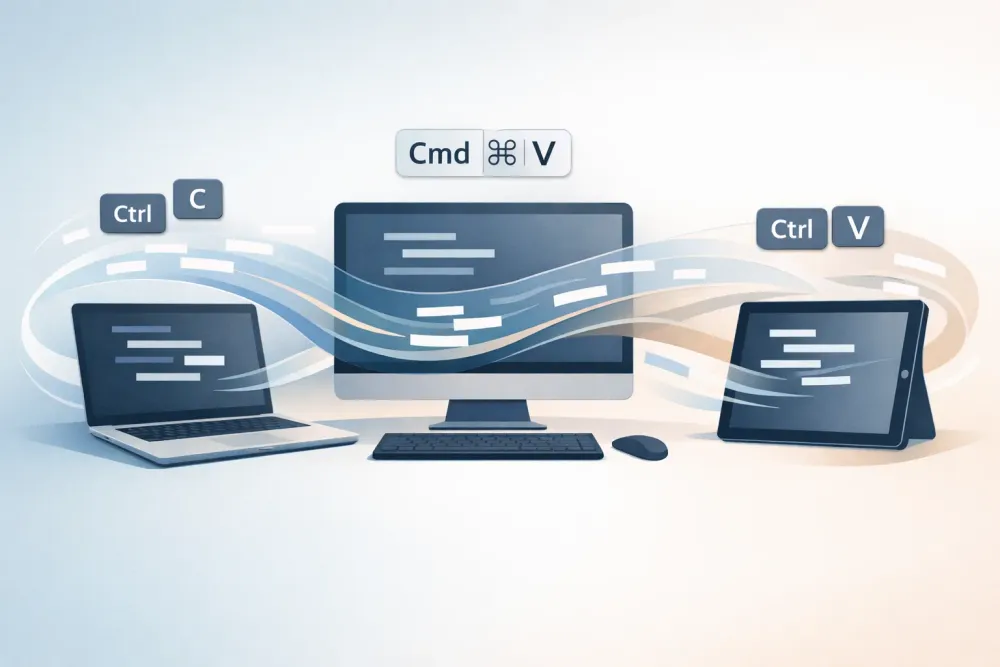
A typing shortcut turns a short trigger into a longer piece of text you use repeatedly. Type ,meet, for example, and it can insert your meeting link. The trigger is quick to enter; the saved text can be a reply, signature, link, or longer snippet.
That makes typing shortcuts useful anywhere repeated writing interrupts your work. The practical question is not only what to save, but whether your shortcuts will work on the computers and in the apps you use every day.
What makes a typing shortcut useful?
A good shortcut saves time without making you stop to remember how it works. It should be:
- Easy to recall: The trigger should make sense to you or your team.
- Unlikely to appear by accident: Avoid ordinary words or common letter combinations.
- Worth reusing: Save text you type often, not every sentence you might need once.
- Easy to update: If the wording changes, you should know where to edit the saved version.
For personal use, a shortcut might insert your calendar link, a sign-off, or a recurring project update. A customer support team might save a first response for a common issue, then personalize it before sending. A sales team could keep approved follow-up wording available without copying it from an old email.
The shortcut provides a starting point, not a reason to send text without checking it. Review names, dates, links, and details that depend on the current conversation.
Set up shortcuts around the text you repeat
Start with a small set of examples from your actual work. Look through recent emails, support conversations, or internal messages and note phrases you have typed more than once. Pick a few that are stable enough to reuse.
Then give each snippet a trigger you can recognize. A simple pattern helps when your library grows. For example, you might use a comma before a short label, such as ,meet for a meeting link or ,intro for an introduction. Pick a pattern that feels natural and does not collide with text you commonly type.
Keep snippets focused. A short sign-off can be its own shortcut, while a complete response may deserve a separate one. If a longer reply includes details that change from one person to another, leave room to personalize it after insertion. A reusable message should reduce retyping, not flatten every conversation into the same answer.
Finally, test a shortcut where you plan to use it. Try it in your email client, chat, or document editor, and check that the inserted text is correct and easy to continue editing. Test longer or multiline snippets too. A shortcut that feels fine in one text field may behave differently in another, so check the apps that matter to your workflow.
Keep shortcuts consistent across operating systems
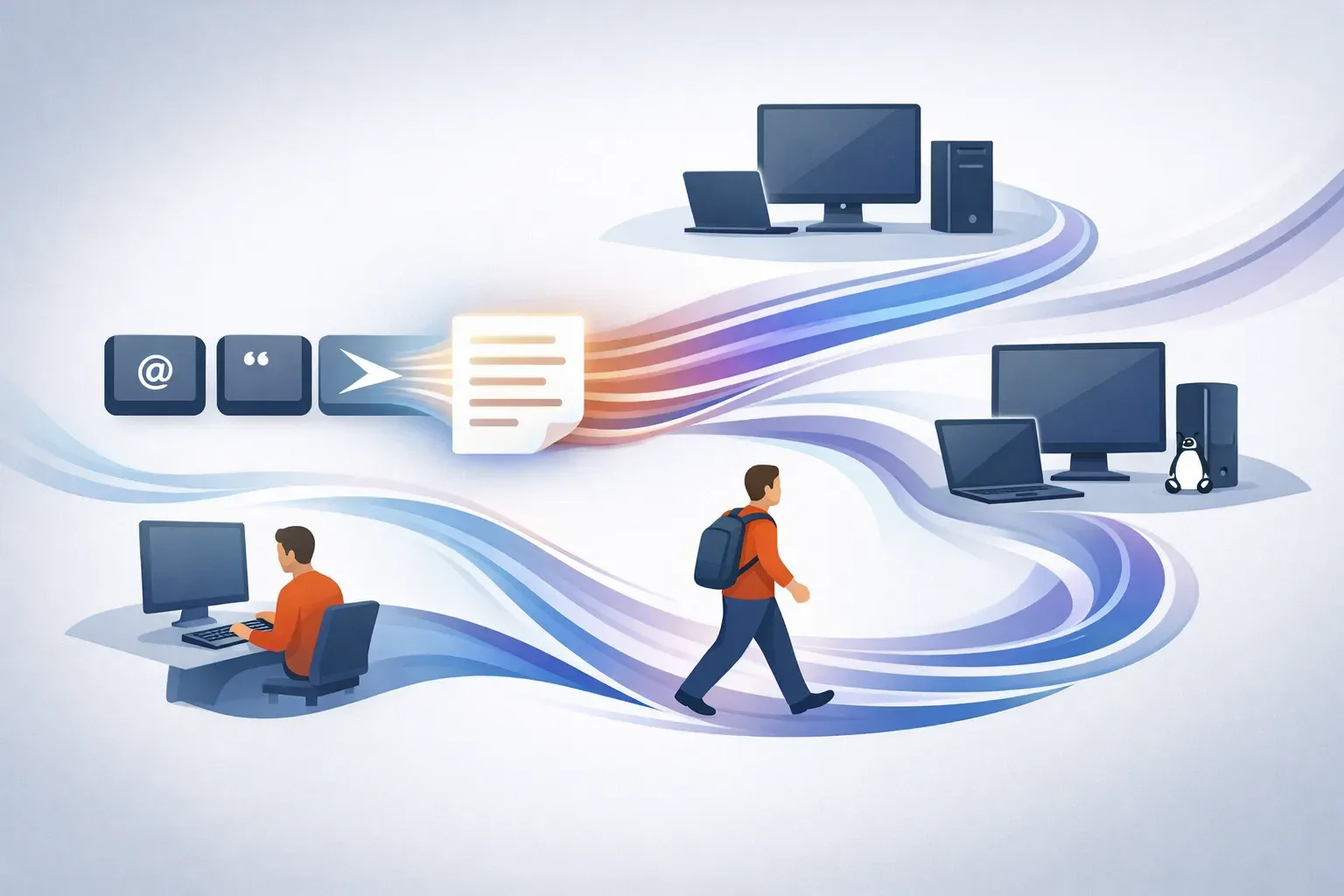
A shortcut library becomes more useful when it follows your work between computers. This matters for people who switch between macOS, Windows, and Linux, and for teams where different members use different operating systems. Without a consistent setup, the same reply may be available on one machine but missing on another, or teammates may end up maintaining separate copies.
Typerelay is a text expander for saving reusable replies, signatures, and snippets as shortcuts. It supports macOS, Windows, and Linux, with web sync and shared snippets available. Individuals can use personal shortcuts; teams can make common wording available through a shared library while keeping personal snippets separate.
When setting up cross-platform shortcuts, check three things:
- The same trigger is available where you work. If you move between operating systems, confirm the snippet library is available on each one.
- The text looks right after insertion. Check line breaks, links, punctuation, and any formatting that matters in your usual apps.
- The current version is the one being used. If a shared reply changes, update the maintained copy rather than leaving old versions in personal notes or separate files.
For platform-specific details, see the guides to a text expander for Linux and a text expander for Windows. If your setup spans operating systems, the cross-platform text expander guide covers what to consider when keeping one shortcut workflow across them.
Make shared shortcuts dependable
A shared shortcut library can help a team use consistent wording, but it needs a little care. Decide which snippets are approved for everyone and who is responsible for keeping them current. Keep personal notes or preferences out of shared replies unless the whole team needs them.
For support or sales messages, treat saved wording as a draft to work from. Agents and reps still need to read the request, choose the right response, and add context. If a snippet includes a policy, price, process, or link, assign someone to review it when that information changes. An outdated shortcut is quick to insert, but it can create extra work for both the sender and the recipient.
It also helps to name snippets so teammates can find the right one. Avoid creating several nearly identical copies with unclear differences. If two versions are necessary, make their purpose obvious, such as one for an initial reply and another for a follow-up.
Start small, then refine
You do not need to convert every repeated phrase into a shortcut. Begin with the few snippets that save the most effort, such as a meeting link, signature, common explanation, or frequently used reply. Use them for a while and notice where the triggers feel awkward, the text needs editing, or a snippet is no longer relevant.
A useful typing shortcut is brief to call up, clear in purpose, and easy to maintain. With Typerelay, those saved snippets can be used across macOS, Windows, and Linux, with web sync and shared libraries for teams that need common wording. Start with the text you already repeat, test it in the apps you use, and keep only the shortcuts that make your daily writing easier.