Mastering Keyboard Shortcuts: Boost Your Productivity and Efficiency
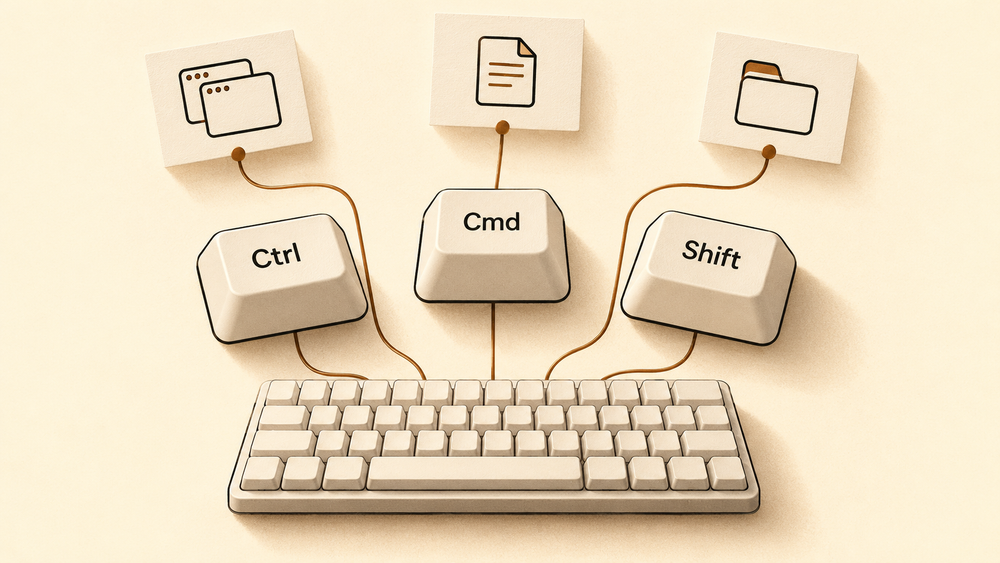
In a world where every second counts, the difference between slow, deliberate mouse clicks and swift, decisive keystrokes can be transformative. Keyboard shortcuts are the secret language of efficient computer use, allowing you to command your machine with unparalleled speed and precision. Moving beyond the mouse isn't just about saving a few seconds; it's about fundamentally changing your workflow, reducing physical strain, and keeping your focus squarely on the task at hand. A keyboard with shortcuts is a powerful tool for any user.
This article is your comprehensive guide to unlocking that potential. We'll journey from the universal commands that form the bedrock of productivity to the operating system-specific shortcuts that tame Windows, macOS, and Ubuntu. We'll then dive deeper, exploring the vast world of application-specific hotkeys for everything from entertainment apps like Spotify and Netflix to professional powerhouses like Jira and Sublime Text. Finally, we'll equip you with strategies to create your own custom shortcuts, turning your keyboard into a personalized command center.
Key Takeaways
- Keyboard shortcuts significantly increase speed and efficiency by replacing slower, multi-step mouse actions with instant key combinations.
- Core benefits include reduced physical strain on your wrist and hand, improved focus by keeping your hands on the keyboard, and a more fluid, uninterrupted workflow.
- Each operating system (Windows, macOS, Ubuntu) has a unique set of essential shortcuts for system navigation, window management, and file operations.
- Most professional and entertainment applications (e.g., Jira, Spotify, Netflix, WhatsApp) have their own dedicated keyboard shortcuts that can dramatically speed up common tasks within the app.
- macOS offers powerful built-in tools for creating custom text replacements, letting you type a short abbreviation that expands into a longer phrase, email, or code snippet.
- Advanced users can leverage third-party applications to create and manage a global library of custom shortcuts that work across all applications.
- Mastery comes from gradual integration; start by learning a few essential shortcuts for your most-used applications and build from there.
The Power of Keyboard Shortcuts: Why They Matter
At its core, a keyboard shortcut is a key or a combination of keys that performs a function that would otherwise require a mouse or other pointing device. Instead of navigating through menus and clicking on options, you execute commands directly. Think about the universal trio: Ctrl+C (Copy), Ctrl+X (Cut), and Ctrl+V (Paste). These keyboard typing shortcuts are so ingrained in modern computing that using the mouse for these actions feels cumbersome and slow. This is the fundamental power of shortcuts: they transform multi-step, high-friction tasks into instantaneous, single-step actions.
The core benefits extend far beyond just speed. Ergonomically, relying less on the mouse reduces the risk of repetitive strain injury (RSI) by minimizing small, repetitive wrist and hand movements. Cognitively, keeping your hands on the keyboard eliminates the context-switching that happens when you move to the mouse, helping you maintain deep focus, or "flow." This is particularly crucial in tasks that demand concentration, such as coding, writing, or data analysis. For anyone looking for efficiency tips, mastering computer hotkeys is a top-tier way to optimize your workflow.
Consider the simple act of closing an application. With a mouse, you must move the cursor to the 'X' at the top of the window and click. With a shortcut like Alt+F4, the action is instant. Imagine applying this time-saving principle to dozens, or even hundreds, of tasks you do daily. While memorizing these combinations has a slight learning curve, the long-term rewards are immense. Committing a few key commands to muscle memory is an investment that pays continuous dividends in productivity and a smoother, more enjoyable computing experience.
Essential Shortcuts for Windows and Ubuntu Users
Every operating system is a complex environment with its own logic for navigation and control. Mastering your OS's native language through keyboard shortcuts is the first step toward true efficiency. Both Windows and Ubuntu offer a powerful set of hotkeys for managing windows, navigating the system, and performing essential tasks without ever touching the mouse. Learning these foundational commands gives you a base to build more specialized, application-specific knowledge.
While some shortcuts are universal (like copy/paste), others are tailored to each OS's unique features. For instance, Windows has a robust set of shortcuts centered on the Windows key for managing virtual desktops and snapping windows, while Ubuntu uses the Super key (often the Windows key on most keyboards) for workspace and application-launching commands. Understanding these differences is key to becoming proficient on your platform of choice. A great way to learn more is to press and hold the Windows or Super key; on some systems, this brings up an overlay of available shortcuts.
Windows Productivity Boosters
For Windows users, efficiency starts with mastering window management. Instead of dragging windows to the edge of the screen, use Win + Left/Right Arrow to snap the active window to one half of the screen. Need more space? Create a new virtual desktop with Win + Ctrl + D and switch between them using Win + Ctrl + Left/Right Arrow. This lets you separate your work, communication, and entertainment apps into distinct, organized spaces.
Here are some of the most indispensable Windows shortcuts:
- Win + D: Instantly show or hide the desktop.
- Win + E: Open File Explorer to quickly access your files.
- Ctrl + Shift + Esc: Open the Task Manager directly, bypassing other menus.
- Win + L: Lock your PC immediately when you step away.
- Win + V: Access your clipboard history, showing the last 25 items you copied.
- Win + Shift + S: Open the Snipping Tool to take a screenshot of a specific area.
- Alt + Tab: Switch between your open applications.
Ubuntu Command Shortcuts for Efficiency
Ubuntu, a popular Linux distribution, is renowned for its keyboard-friendly environment, especially for developers and power users. The terminal is central to the Ubuntu experience, and the single most important shortcut to learn is Ctrl + Alt + T, which instantly opens a new terminal window. Within the terminal, you can cycle through tabs with Ctrl + Page Up/Down.
Here are some essential Ubuntu shortcuts for system and workspace management:
- Super key (Windows key): Tap to open the Activities overview and search for applications.
- Super + L: Lock the screen.
- Ctrl + Q: Close an application window.
- Super + Left/Right Arrow: Snap the current window to the left or right side of the screen.
- Super + Up Arrow: Maximize the current window.
- Alt + Tab: Switch between open applications.
- Shift + PrtSc: Take a screenshot of a selected area.
Unlocking macOS Potential with Custom and Built-in Shortcuts
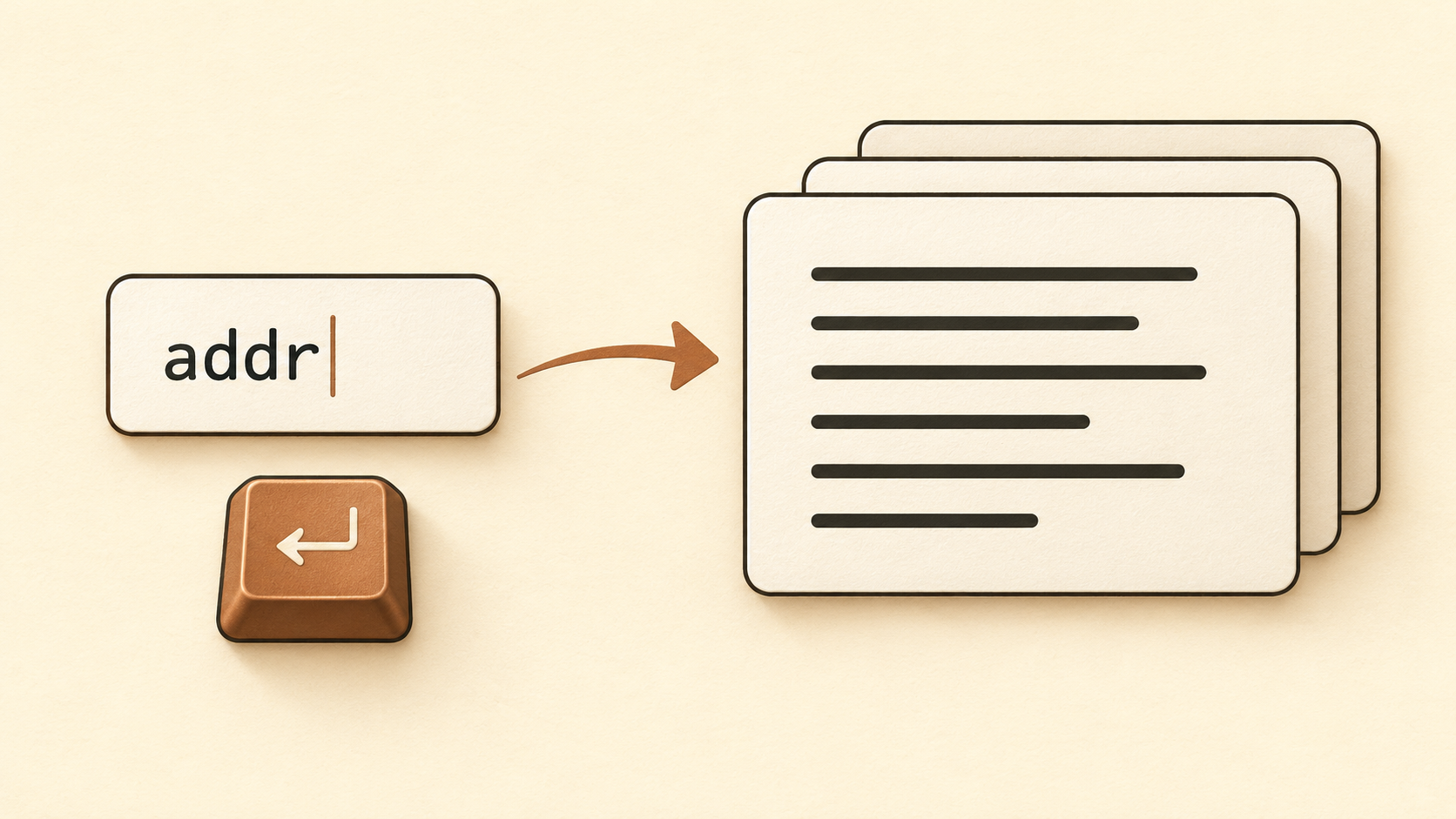
macOS offers a powerful, unique approach to keyboard efficiency, with a strong emphasis on user customization. Beyond a robust set of standard system shortcuts, Apple provides two key tools for power users: text replacements and the dedicated Shortcuts app. Text replacements are a game-changer for anyone who frequently types the same phrases, email addresses, or code snippets. By learning how to create text shortcuts on Mac, you can define a short abbreviation (like "myemail") that automatically expands into a full string of text ("my.name@emailprovider.com"), saving countless keystrokes over time.
This functionality is managed directly in System Settings, making it easy to access and configure. For more complex tasks, the Shortcuts app lets you chain multiple actions across different applications and assign the entire workflow to a single hotkey. This moves beyond simple text expansion into true automation, letting you build custom commands tailored precisely to your needs, from resizing a batch of images to starting your favorite work playlist and opening specific documents all at once.
Text and Editing Shortcuts on Mac
Creating your own text shortcuts on a Mac is straightforward and can deliver major productivity gains. This feature, sometimes called text replacement, is perfect for everything from common email sign-offs to complex technical terms.
Here’s how to set one up:
- Open System Settings (previously System Preferences).
- Select Keyboard from the sidebar.
- Click the Text Replacements... button.
- Click the plus (+) icon to add a new entry.
- In the "Replace" column, type your short, easy-to-remember trigger text (e.g., "addr").
- In the "With" column, type the full text you want it to expand into (e.g., "123 Main Street, Anytown, USA 12345").
Your shortcut is now active across most applications. Of course, classic Mac text-editing shortcuts remain essential: Command+C for copy, Command+V for paste, Command+X for cut, and Command+Z for undo. To remove a custom shortcut, return to the Text Replacements menu, select the one you want to delete, and click the minus (-) icon.
To bring reusable text into your wider workflow, explore Typerelay’s text-expansion features and desktop apps for macOS, Windows, and Linux.
System and App Shortcuts on macOS
macOS also offers deep customization for system- and app-specific shortcuts. If a default key combination feels awkward or conflicts with another app, you can often change it. To do this, navigate to System Settings > Keyboard > Keyboard Shortcuts. From there, you can select "App Shortcuts" to create new hotkeys or override existing ones for any application by specifying the exact name of the menu command you wish to trigger.
This level of control is invaluable for tailoring your workflow. For example, you can streamline your task management in Apple's built-in Reminders app with its own set of handy shortcuts. Pressing Command+N creates a new reminder, while Shift+Command+N creates a new list. You can even jump directly to your "Today" list with Command+1 or your "Flagged" list with Command+4.
Mastering Application-Specific Keyboard Shortcuts
While operating system shortcuts form the foundation of your productivity, mastering application-specific shortcuts is where you can make the biggest workflow improvements. Every app, from your code editor to your music player, has a unique set of commands designed to speed up its core functions. Learning these specialized hotkeys can turn you from a casual user into a power user, letting you perform complex actions quickly and easily. A keyboard shortcut app can be a great way to learn these commands.
The key is to focus on the apps you use most and identify the actions you repeat most often. Whether it's managing tasks in a project management tool, controlling playback in a media app, or manipulating code in a development environment, there's almost always a shortcut that can do it faster. Many applications include a "Help" menu that lists all available shortcuts, and some, like the Linear app, are built from the ground up to be keyboard-first. Taking the time to find and memorize a few key combinations for your primary tools will compound over time, saving hours of effort and keeping you in uninterrupted flow.
Entertainment & Communication App Shortcuts
Even your leisure and communication apps are packed with time-saving shortcuts. For music lovers, Spotify app keyboard shortcutswithout clicking. Use the Spacebar to play or pause, Ctrl+Right Arrow (or Command+Right Arrow on Mac) to skip to the next track, and Ctrl+Up/Down Arrow to adjust the volume.
When you're streaming, Netflix app keyboard shortcuts are essential for a smooth viewing experience. The Spacebar or Enter key toggles play/pause, while the F key enters and the Esc key exits full-screen mode. Use the Left and Right arrow keys to rewind or fast-forward by 10 seconds. For messaging, the WhatsApp desktop app keyboard shortcuts make managing conversations a breeze. Jump to the next chat with Ctrl+Shift+] or start a new chat with Ctrl+N.
Productivity & Development App Shortcuts
In professional settings, shortcuts are non-negotiable for efficiency. For agile teams, Jira board shortcuts are critical. You can create a new issue from anywhere by pressing C, add a comment with M, and assign an issue with A. To navigate lists of issues, use J for the next issue and K for the previous one.
Developers using Mac will appreciate the extensive Sublime Text keyboard shortcuts Mac offers for code editing. For modern project management, Linear app keyboard shortcuts are central to its design; press C to create a new issue or Cmd/Ctrl+K to open the command menu, which gives you access to every action in the app. Even creative and AI tools have their own hotkeys, such as Sketchbook app keyboard shortcuts for artists and Claude Code desktop app keyboard shortcuts for developers working with AI models.
Tools and Strategies for Advanced Shortcut Management
While built-in operating system tools are powerful, true shortcut mastery often involves third-party applications. A dedicated shortcut app can serve as a central command center, letting you define global hotkeys that work across every application on your system. These tools go beyond simple key remapping, offering features like context-aware shortcuts that perform different actions depending on the active window, or multi-step macros that execute a sequence of commands with a single keypress.
When choosing a shortcut management app, look for an intuitive interface for creating and organizing commands, the ability to assign global hotkeys that don't conflict with existing app shortcuts, and robust import/export options to back up your personal library. Keeping your custom shortcuts documented and organized is crucial. Start with a logical naming convention and group them by function (e.g., "Text Snippets," "Window Management," "App Launchers"). This not only helps you remember them but also makes it easier to troubleshoot if a hotkey stops working, which is often due to a conflict with a newly installed application.
Customizing and Changing Shortcuts
Tailoring your digital environment to your needs is a hallmark of an efficient user. This often involves changing default keybindings that feel unintuitive or creating new ones for repetitive tasks. For example, you might want to learn how to change keyboard shortcuts in the NVIDIA app to avoid conflicts with other programs or to make screen recording more accessible during gameplay. Most applications with extensive functionality, from gaming overlays to complex design software, will have a dedicated section in their settings menu for customizing hotkeys.
When your needs become more complex, using a dedicated app for keyboard shortcuts is the logical next step. These utilities act as a universal layer on top of your operating system, intercepting your custom key combinations and translating them into actions. This is especially powerful for creating workflows that span multiple applications, such as a single shortcut that copies text from a browser, opens a note-taking app, creates a new note, and pastes the text. This level of automation is where the most significant productivity gains are found.
Conclusion: Your Journey to Shortcut Mastery
Embracing keyboard shortcuts is more than just a technical skill; it's a fundamental shift in how you interact with your computer. By moving away from the mouse and committing key commands to muscle memory, you unlock a faster, more efficient, and more focused way of working. We've journeyed from the universal basics of copy and paste to the nuanced commands of specific operating systems and the deep, productivity-boosting hotkeys of specialized applications. The common thread is clear: shortcuts eliminate friction and keep you in the creative flow.
Your path to mastery doesn't require learning every command at once. The most effective approach is to integrate them gradually. Start by identifying the five most common actions you perform in your primary application. Look up the shortcuts for those actions and consciously practice using them for a week. Once they become second nature, pick five more. This steady, incremental approach builds lasting productivity habits without feeling overwhelming.
The long-term impact is profound. You'll not only complete tasks faster but also experience less physical strain and mental fatigue. Your keyboard will transform from a simple input device into a powerful command center, making your entire digital experience smoother and more enjoyable. The journey is continuous, but the rewards are well worth the effort. What are your favorite can't-live-without shortcuts? Share them in the comments below!
Frequently Asked Questions
Q: What is the fastest way to learn keyboard shortcuts?
A: The fastest way is to focus on the 20% of shortcuts that you will use 80% of the time. Identify the most repetitive tasks you do daily in your most-used application (e.g., creating a new email, archiving a message, switching tabs) and learn the specific shortcuts for those actions first. Practice them consciously until they become muscle memory.
Q: Can keyboard shortcuts cause conflicts between applications?
A: Yes, conflicts can occur if two applications are running and use the same key combination for a global shortcut. Most well-designed applications use shortcuts that are only active when the app is in focus. However, for global hotkeys (which work anywhere), it's best to use more complex combinations (e.g., involving Ctrl + Alt + Shift) or use a dedicated shortcut management tool to resolve conflicts.
Q: How do I find all the shortcuts for a specific program?
A: Most desktop applications have a "Help" or "Window" menu in the top menu bar that includes a "Keyboard Shortcuts" section. Many web apps have a similar guide you can access by pressing the question mark key (?). A quick web search for "[Application Name] keyboard shortcuts" will also almost always yield a comprehensive list.
Q: Are keyboard shortcuts the same on Windows and Mac?
A: While some are similar, they often use different modifier keys. The Control (Ctrl) key on Windows is typically replaced by the Command (Cmd) key on Mac. For example, Copy is Ctrl+C on Windows but Cmd+C on Mac. The Alt key on Windows often corresponds to the Option key on Mac.
Q: Can I create a shortcut to type a whole sentence or paragraph?
A: Yes, this is known as text expansion or text replacement. macOS and iOS have this feature built-in (System Settings > Keyboard > Text Replacements). For Windows and other platforms, you can use third-party applications like AutoHotkey (Windows) or TextExpander (cross-platform) to create custom abbreviations that expand into longer blocks of text.
Q: What is the "Super" key in Linux/Ubuntu?
A: The "Super" key is the operating system key. On most standard keyboards, this is the Windows key. On Apple keyboards, it is the Command key. It's the primary modifier key for system-level commands and window management in many Linux desktop environments.
Q: Is it worth using a third-party app to manage shortcuts?
A: For most users, the built-in OS tools are sufficient. However, if you are a power user who wants to create complex, multi-step macros, build a library of global hotkeys that work across all apps, or manage a large number of custom text snippets, a dedicated third-party app can be a worthwhile investment for its advanced features and organizational tools.