Text Expander Tutorial: Create Reusable Snippets for Forms
Learn to create Typerelay snippets for repeated form entries, choose a trigger that won't fire by accident, and test expansion where you plan to use it. The guide also explains how to review placeholders and keep saved text accurate.

Typing the same contact details, short explanation, or support reply into multiple forms is repetitive and easy to get wrong. A text expander can store that wording as a snippet and insert it when you use a shortcut.
This tutorial shows how to plan a snippet, add it to Typerelay, and test it in a form. The YouTube walkthrough demonstrates the process in TypeFire, so its buttons and fields may not match Typerelay. The basic ideas still apply: give the snippet a clear name, save the text in a library, and choose a trigger you can remember.
1. Pick text that is worth reusing
Start with wording you enter often and that stays mostly the same. Good candidates include:
- A business or mailing address
- A standard introduction or sign-off
- A short answer to a recurring question
- A project or company description
- A reusable note with details you can fill in
Avoid saving information that changes for each person or case as if it were fixed. A snippet should speed up the repeated part, not encourage you to paste inaccurate details. For guidance on turning common messages into reusable text, see reusable email replies and snippets.
Before you create one, write down where you expect to use it. A snippet for an email reply may need a greeting and sign-off. One for a form field may need to be shorter and make sense without surrounding context.
2. Write the snippet text and mark details to review
Draft the complete text before adding it to Typerelay. Use clear cues for information you need to supply each time.
For example:
Hello [Name],

Thanks for contacting [Company]. We received your request about [Topic].
The next step is [Next step].

Best,
[Your name]
The bracketed notes make it easier to spot details that need editing after expansion. If the snippet is intended for a single form field, remove the greeting and other text that does not belong there.
Keep changing facts out of reusable wording where possible. Dates, prices, account details, eligibility, and case-specific instructions can become stale or be wrong for the next recipient. If you must include a detail that changes, make it obvious and check it before sending or submitting.
3. Create a snippet in Typerelay
In Typerelay, create a snippet in the library where you want to keep it. Give it a descriptive name that will help you find it later, such as "Company address" or "Request received reply." Add the text you prepared, then assign a distinctive abbreviation or trigger.
A good trigger is short enough to type quickly, but unusual enough that it is unlikely to appear by accident in ordinary writing. For instance, a pattern such as ;addr is easier to distinguish from a common word than address. Choose something you can remember and use consistently.
The TypeFire tutorial shows fields such as a title, text, collection, tag, and abbreviation or keyboard shortcut. Those are TypeFire's controls, not a guarantee that Typerelay uses the same fields. In Typerelay, focus on the core setup: save the reusable text in a library and give it a trigger that you can use. Organize snippets by their names and libraries rather than expecting a particular tag field.
4. Choose an abbreviation or a keyboard shortcut
An abbreviation and a keyboard shortcut are different ways to call up saved text.
An abbreviation is a short sequence you type where you want the snippet to appear. For example, typing ;addr can expand into a saved address if that trigger is configured. This is useful when you want to insert text directly while writing.
A keyboard shortcut uses a key combination to open or select a snippet. It can be useful when you do not want to remember a separate abbreviation for every saved entry. The exact available controls depend on the application and setup, so check Typerelay's current interface rather than assuming the key combination shown in a different tool's video will apply.
If you are just starting, pick one method for your first snippet. Test it before creating a large collection of triggers. You can add more once the pattern feels natural. For more ideas on choosing and maintaining triggers, see typing shortcuts for reusable replies, signatures, and phrases.
5. Expand the snippet in a form
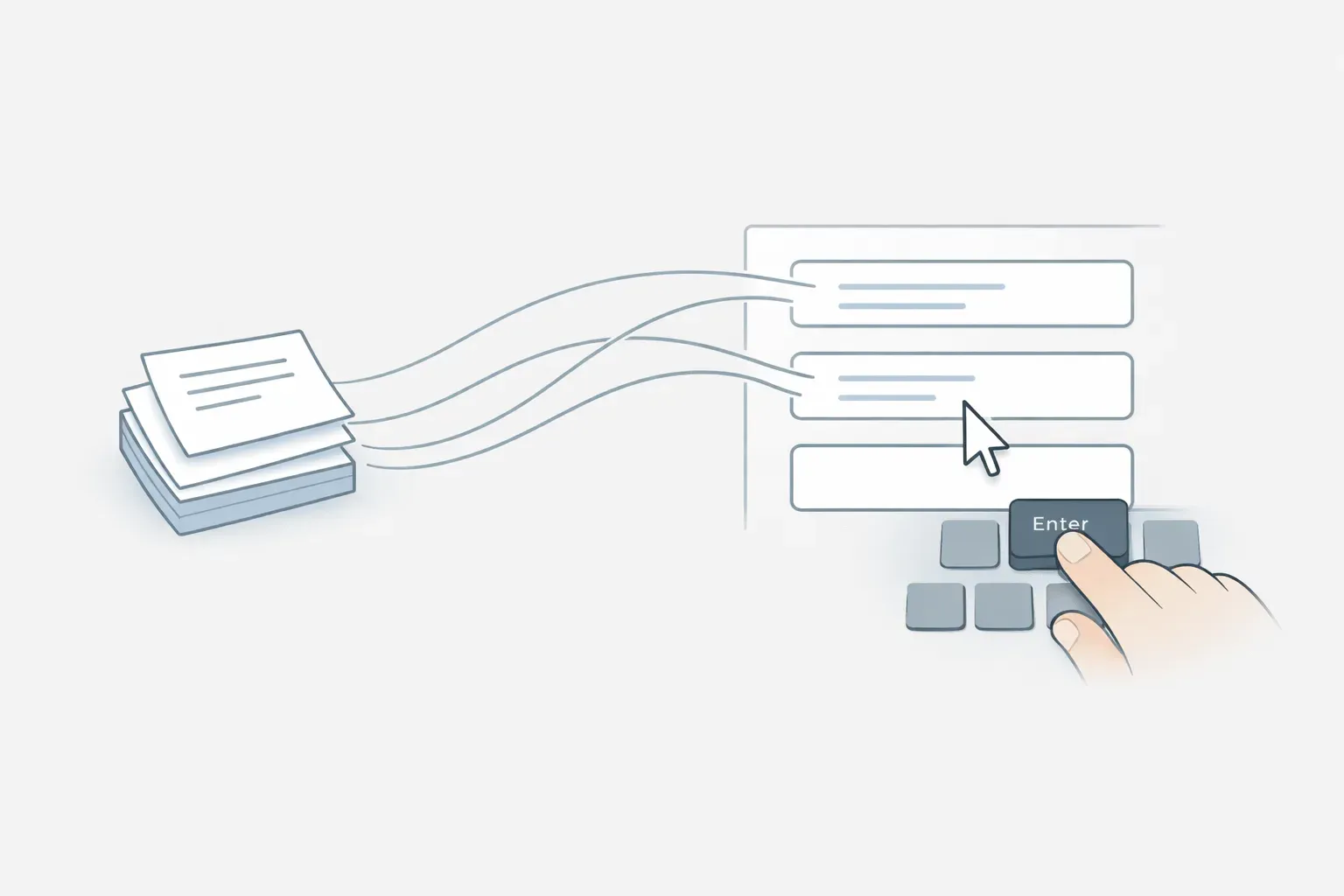
Open the form and click inside the field where the text should go. Make sure the cursor is in the right place, then use your configured abbreviation or shortcut. Review the inserted text before continuing.
For a multi-part snippet, fill in the marked details and check that the message fits the form's purpose. If the text is going into a single-line field, a long email-style snippet may be a poor fit. Use separate, shorter snippets when different fields require different content.
Text expansion inserts text; it does not mean every form task is automated. A text expander may not select a dropdown option, click a button, or submit a form. Treat those as separate actions unless you have confirmed your specific setup supports them.

6. Test the trigger before relying on it
Try the snippet in a low-risk text field first. Check that:
- The trigger expands when you intend it to.
- It does not expand while you are typing a normal word or sentence.
- Line breaks and punctuation appear as expected.
- The whole snippet fits the field and is readable.
- You can edit the personal details after expansion.
Then test it in the form or application where you plan to use it. Different text fields can behave differently, so a successful test in one app does not guarantee that every form will behave the same way. Keep the original text available until you know the snippet works in your usual workflow.
Troubleshooting common problems
The abbreviation stays on screen. Check that the snippet was saved and that the trigger is configured as intended. Confirm that Typerelay is running and that you are using the trigger in a text field where expansion is available.
It expands when you did not mean it to. Choose a less common trigger, then test it in normal writing. Avoid short sequences that are likely to appear in names, words, or code.
Only part of the text appears. Check whether the field accepts multiple lines or has a character limit. Try a smaller snippet and test again. A long message may work better in an email body than in a compact form field.
The text is inserted in the wrong place. Click the intended field and confirm the cursor position before using the trigger. Expansion follows the active text input; it does not choose the destination for you.
A personal detail is left unchanged. Make placeholders visually distinct, such as [Name] or [Reference number], and scan the expanded text before sending or saving the form.
Keep reusable text useful
A snippet saves effort only while its contents remain accurate. When a contact detail, process, or approved response changes, update the saved version and remove outdated copies. If a team uses the same wording, a shared snippet library can help keep the common text in one maintained place.
Typerelay supports reusable snippets across macOS, Windows, and Linux, with web sync and shared snippets available for teams. Start with one piece of text you repeat, give it a clear name and an uncommon trigger, then test it in the form you use. Once that works, add other snippets only when there is a real repeated task to solve.